WhatsApp Business message template: all you need to know

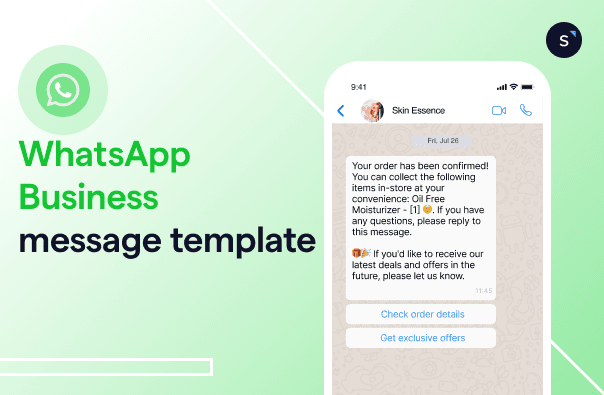
A WhatsApp Business message template is the only message WhatsApp lets you send once a customer's 24-hour service window has closed. It's a pre-approved format Meta checks in advance, and it's what powers every broadcast, order update, and re-engagement campaign you send after that window shuts.
Get them wrong and your messages stall in review or never reach anyone. Get them right and you can reach customers anytime, at scale. This guide covers the three template categories, 2026 pricing, how to create and submit templates, why they get rejected, and the best practices that get them approved.
What's a WhatsApp Business API template?
WhatsApp Business message templates are pre-approved, standardized messages that businesses can use to communicate with customers. These templates are especially important when sending messages to customers who have yet to message your business or who have not sent you a message in the last 24 hours.
In addition to individual customer interactions, blast messages (messages sent to a large group of customers) also require the use of approved templates.
The message templates can be used for various types of communication, including transactional messages (like order confirmations), notifications (like shipping updates), and even marketing messages (like promotional offers).
With AI agents ready to take over the moment a customer replies, every template you send can kickstart an intelligent, personalized conversation. This exchange happens instantly and around the clock, all without a human agent needing to intervene.
When templates are required
To message customers on WhatsApp, the most important rule to understand is the 24-hour customer service window. This rule determines whether you can send a free-form message or if you must use a pre-approved template.
The mechanics are simple: when a customer messages you, a 24-hour timer starts. Within this window, you can reply with any type of message you want, no template necessary. If the customer messages you again, the 24-hour clock simply resets.
However, once that 24-hour period ends, you can only re-initiate the conversation using a message template previously approved by WhatsApp.
Templates are required when:
You're starting a new conversation with a customer.
You're sending broadcasts or bulk messages.
You send any business-initiated marketing, utility, or authentication message outside the 24-hour window.

Want to outcompete your peers with SleekFlow's help?
Book your personalised demo with SleekFlow today and unlock the potential of seamless communication
Categories of WhatsApp message templates for businesses
WhatsApp Business classifies message templates into three primary categories, each serving a different purpose. It's important to understand these categories to ensure you use the right template for the right situation:
1. Utility message template
Utility message templates are used for transactional communications that provide essential, actionable information to the customer. These messages often relate to customer transactions or services and typically don't promote products or services directly.
Utility message template examples:
Order confirmations: inform customers when an order has been successfully placed.
Hi {{1}}, your order #{{2}} has been confirmed. You will receive an update once it has shipped.
Shipping updates: keep customers informed about the shipping status of their orders.
Your order {{1}} has been dispatched and is on the way! Track it here: {{2}}.
Appointment reminders: notify customers about upcoming appointments or meetings.
This is a reminder for your appointment with [Business Name] at {{1}} on {{2}}.
These messages are essential to keeping customers informed and ensuring the smooth operation of services or transactions.
2. Authentication message template
Authentication message templates are used for secure communication, typically involving customer identity verification or account management. Businesses can send an authentication message to maintain security and ensure that only authorized users can access sensitive information or perform specific actions.
Authentication message template examples:
One-time passwords (OTPs): sent to authenticate login or payment actions.
Your OTP for login is {{1}}. It's valid for the next 10 minutes.
Account recovery: assists users in recovering their accounts.
To reset your password, click on the link below: {{1}}.
Account registration: confirms the successful registration of a customer's account.
Thank you for registering at [Business Name]. Your account is now active.
Authentication templates ensure that sensitive operations, like logging in or resetting passwords, are handled securely.
3. Marketing message template
Marketing message templates are used to engage customers with promotional content, product updates, and special offers. These messages are designed to drive sales and inform customers about new products, discounts, or events.
SleekFlow's broadcast campaign tool lets you segment your audience, personalize messages with dynamic variables, and track your delivery and response rates in real time. If a recipient replies, our AgentFlow AI agent can answer questions, recommend products, and guide them to checkout, all within the same chat.
Marketing message template examples:
Promotions and discounts: notify customers about special deals and offers.
Hi {{1}}, enjoy 20% off your next purchase with us! Use code: DISCOUNT20.
New product announcements: keep customers in the loop about new arrivals or services.
We've just launched a new collection! Check out our latest products here: {{1}}.
Event invitations: invite customers to join events, webinars, or product launches.
Join us for an exclusive webinar on [Topic] on {{1}} at {{2}}.
Note that if a message contains elements of both utility and marketing, such as a message that confirms an order (utility) and simultaneously promotes a new product, it will be classified as a marketing message.
How Pristine Aroma finds success with seasonal WhatsApp campaigns on SleekFlow
Pristine Aroma, a leading Singaporean home fragrance brand, had expanded globally into markets like Malaysia, Indonesia, the USA, and Canada. Their traditional email marketing was yielding low engagement and underwhelming returns, and without a centralized messaging platform, consistent communication across regions was difficult to maintain.
The company adopted WhatsApp marketing through SleekFlow. They first secured a WhatsApp green tick to build credibility, then launched personalized, seasonal broadcast campaigns to targeted customer segments, distributing discount codes during sales days and festivals. This was supported by a social media lead generation strategy that automatically nurtured new contacts.
The 9.9 sale campaign in Singapore delivered:
Conversion rate: 18%
WhatsApp marketing ROI: 13x
Open rate: 56%
Click-through rate: 16%
Pricing in 2026: what gets charged (and what doesn't)
On 1 Jul 2025, WhatsApp changed how it charges for business messages. Instead of the old conversation-based model, it now charges a fee for each template message delivered through the WhatsApp Business API. The cost of each message depends on the template category and the recipient's country. Meta refreshed its per-message rate cards again on 1 Jul 2026, and a further change lands on 1 Oct 2026: utility templates sent inside the 24-hour customer service window, and free-form service replies within that window, both stop being free and move to per-message billing.
Here are a few key points about WhatsApp pricing:
Rates are set by the recipient's country: message costs depend on your customer's location, and these rates can vary significantly between markets.
Utility messages can be free (until 1 Oct 2026): if a customer messages you first, you can send a utility template for free within that 24-hour service window. From 1 Oct 2026, these utility templates are billed per message.
Free service replies are ending: free-form replies sent inside the 24-hour customer service window are free until 30 Sep 2026, then billed per message from 1 Oct 2026.
Volume discounts are limited: Meta automatically applies volume discounts for utility and authentication messages, but this doesn't apply to marketing messages.
Marketing messages are always charged: you are billed for every marketing message, as there is no free tier or bulk discount available.
How to create and submit templates (WhatsApp Manager vs SleekFlow)
To create WhatsApp Business message templates, you first need to sign up for Meta Business Manager and set up a WhatsApp Business Platform account. This is essential for accessing WhatsApp's messaging features.
After your account is created, you have two main options for creating and submitting WhatsApp templates: you can go directly through Meta's WhatsApp Manager or use a BSP platform such as SleekFlow. While both paths lead to Meta for approval, they offer quite different user experiences.
The general process looks similar for both:
First, you'll choose a category: marketing, utility, or authentication.
Next, you'll name your template (for example, order_confirmation_v2).
Then, set the language for the message.
After that, you'll build the content. This includes a body, and you can add an optional header, footer, and buttons. You'll use variables like {{1}} for personalization.
You must provide sample values for each variable so Meta can review the template in context.
Finally, you submit it for review, which can take anywhere from a few minutes to 24 hours.
So, how do the two routes compare?
Approved templates automatically integrate with your broadcast campaigns, Flow Builder automations, and AgentFlow playbooks, so they are ready to use whenever you need them.
Once your account is set up, you can begin creating and managing your message templates through your WhatsApp Business Platform. Many businesses use tools like SleekFlow to unify template message creation and sending.
For a detailed, step-by-step guide on setting up and managing WhatsApp templates, refer to the WhatsApp Template Manager help guide.
Why WhatsApp templates get rejected (and how to fix them)
WhatsApp often rejects templates, but you can prevent this. Most rejections stem from a few common mistakes. If you understand what Meta's reviewers are looking for, you can avoid these issues.
Best practices for using WhatsApp Business templates
1. Compliance and opt-out:
Always include opt-out instructions in marketing templates, such as "Reply STOP to unsubscribe."
Ensure your template follows WhatsApp's policies to avoid flagging.
SleekFlow makes it easy to manage user consent. You can store and track opt-in statuses right on the platform and automatically handle opt-outs.
2. Media and links:
Keep media within WhatsApp's size limits: around 5 MB for images, 16 MB for video and audio, and up to 100 MB for documents.
Use valid domains (e.g., https://sleekflow.io) for a better approval process. Avoid shortened links (e.g., https://bit.ly).
3. Template structure and language:
Ensure the language in the template body, header, footer, and buttons is consistent.
Avoid using variables at the start or end of your message, and ensure they follow sequential order (e.g., {{1}}, {{2}}).
Don't use emojis, special formatting, or excessive new line characters (\n) in headers.
4. Message buttons:
Use quick reply or call-to-action buttons, but not both in a single template.
5. Content quality:
Double-check for spelling and grammatical errors before submission.
Select the correct template category based on the content, and avoid creating duplicate templates.
6. Template naming and organization:
Use clear, descriptive names for your templates (e.g., avoid generic names like "Test Campaign").
Include media samples (e.g., image or video) in your template submission.
7. Automate follow-up messages:
Automate replies to customer responses to your template message.
Maximize your engagement by setting up automated follow-ups with SleekFlow's Flow Builder. For instance, you could create a flow that automatically sends a re-engagement message after 24 hours of inactivity.
Use AgentFlow, our AI agent, to handle replies to your template messages. When a customer responds, the AI agent engages them with relevant answers drawn from your knowledge base. This ensures you never miss a lead and that every conversation reaches a resolution or conversion.
With this guide, you're ready to put WhatsApp Business API message templates to work. With SleekFlow's AI platform, businesses can create, manage, and send template messages to strengthen communication with customers.
Why choose SleekFlow as your WhatsApp Business solution?
SleekFlow is a Meta-verified Business Solution Provider, a trusted platform that enables businesses to manage customer conversations securely and reliably.
The benefits of working with SleekFlow to implement your WhatsApp strategy include:
Get expert guidance through the setup process with dedicated support from SleekFlow.
Leverage a built-in AI agent to help you manage customer engagement and conversion journeys.
Manage other social messaging channels, including Facebook Messenger, Instagram Direct Messages, and more in a unified inbox.
Set up automated workflows to sync data with other business tools such as Salesforce, HubSpot, and Shopify, creating personalized engagements and reducing manual, repetitive work.

SleekFlow is the official Meta Partner for business messaging.
Explore the WhatsApp Business API use cases we support for marketing, sales, and support.